Web Browser Connect · No Download Required

Stay Connected from Any Web Browser.

Access all key business phone features directly from your browser — no app installation required. Make calls, chat, video conference, and manage contacts from Chrome, Firefox, Safari, or Edge on any computer.
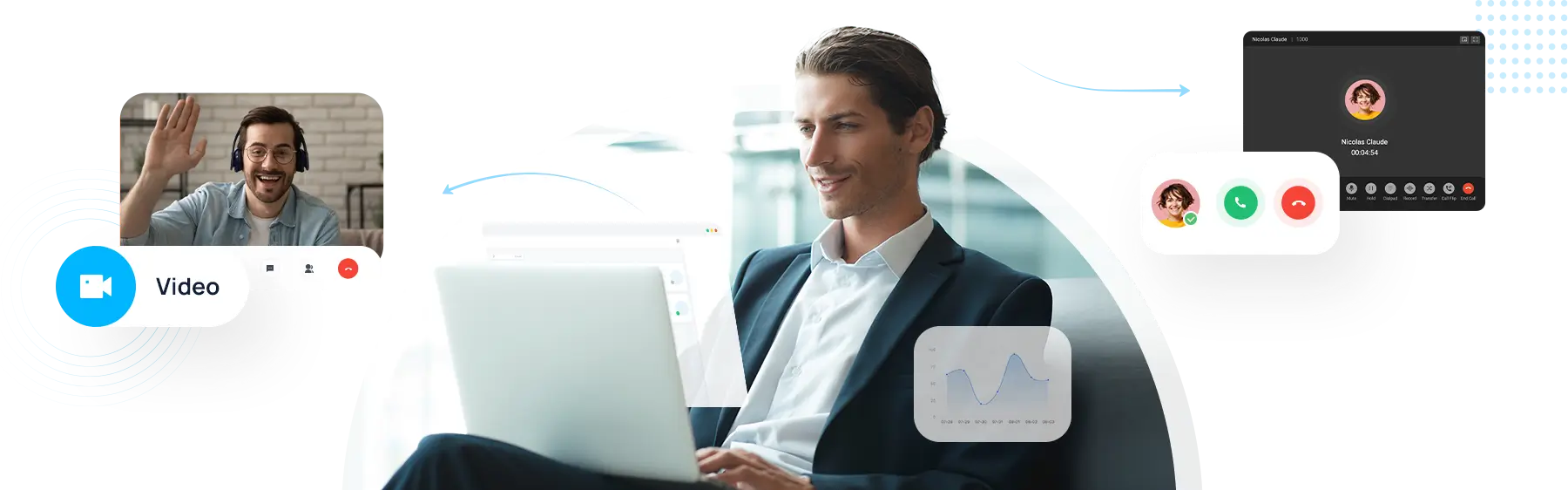
No app download needed Works in any modern browser Includes Chrome extension
Phonewire web browser client — business phone system accessible from any browser without downloading software
🖱️

Click and Connect

Make and receive calls, chats, and meetings directly from your browser — no installation, no configuration, just log in.

🔒

Secure Everywhere

Encrypted, secure connection with one login — no VPN or firewall settings needed on any browser or network.

🔄

Log In and Go

Simply log in and everything is there — features, call history, contacts, and settings all in sync with your other devices.

Full Feature Set

The Right Set of UC Capabilities

Give your team the tools they need to communicate and collaborate — fully accessible from any web browser, no software required.

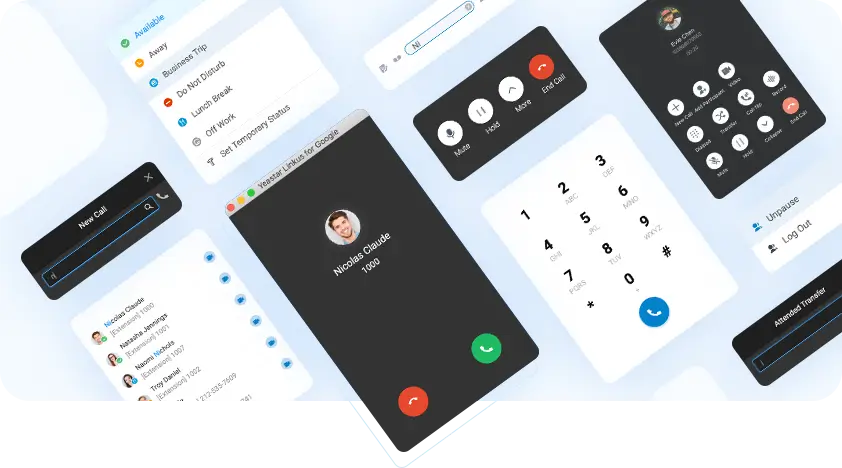
View the real-time availability of your colleagues before reaching out. Determine the most appropriate time and method for connecting with them — reducing missed calls and unnecessary interruptions.
Assign function keys for quick access to frequently used features — speed dial, day/night call routing, intercom paging, and voicemail check — with a single click from your browser.
Easily transfer an active call between your Web, Desktop, Mobile app, and desk phone with one click — seamless calling experience without interruptions, regardless of which device you started on.
Manage business and personal contacts with click-to-call functionality directly from your browser. Contacts sync automatically from your CRM and across all your devices.
Support customers through Web Chat and SMS text messaging, and collaborate with your team in internal chat with file sharing — all from one browser window.
Manage and monitor call queues in real time with the full Queue Panel, Wallboard, and agent productivity tools — all accessible from your web browser without installing software.
Host secure face-to-face meetings with anyone right from your web browser. The Web Client supports integrated video conferencing, in-meeting team chat, and screen sharing to make remote meetings easy and engaging — no separate Zoom or Teams account needed.
Phonewire web browser UC app — presence panel and UC capabilities
Phonewire Google Chrome extension — click-to-dial, call pop-ups, and CRM integration from any web page
Optional Chrome Extension

A Very Lightweight Web Calling Experience

The optional Google Chrome extension takes browser-based calling even further — so you never miss a call and dialing becomes effortless from any page you’re on.

  • Incoming call pop-ups, even if the browser is closed
  • Audio and video call transferring, holding, and CTI
  • Click to call any phone number on any web page — CRM, AI tools, or Outlook
  • Use the dial pad or search for extensions and contacts
  • Change your presence status and view your colleagues
  • Instantly notified of missed calls and new voicemails
Security & Access

One-Click Remote Access — Secure and Productive, Anywhere

Phonewire’s Remote Access Service ensures secure, stable connections on any device from anywhere — whether working from home, a hotel, or on the go.

No VPN setup. No firewall configuration. No IT headaches. Just log in to your browser and you’re connected to your full business phone system instantly.


One-click remote access — secure business phone from any browser or device
Phonewire web client in sync with mobile and desktop
Integrations

Integrate, then Automate

Your browser-based phone connects to your favorite CRM, helpdesk, and business platform — syncing contacts, tracking conversations, and analyzing calls. Works automatically in sync with your mobile and desktop clients.

Browse All Integrations →
See It in Action

Watch: Business Phone Service From Any Device, Anywhere

See how the web client keeps your business reachable from any browser. Full demo of calls, contacts, and messaging — accessible without installing a single piece of software.
Need your team to access their business phone without installing anything?

The web browser client is included with Phonewire’s business phone service — no extra setup, no extra cost.

Common Questions

FAQ: Web Browser Connect

No. The web browser client works in any modern browser — Chrome, Firefox, Safari, or Edge — with nothing to install. Just log in with your Phonewire credentials and your full business phone system is immediately available. The optional Chrome extension adds extra features like click-to-dial, but it’s not required.
The web client works in Google Chrome, Mozilla Firefox, Apple Safari, and Microsoft Edge. For the best experience and to use the optional click-to-dial Chrome extension, Google Chrome is recommended.
Yes. The web browser client supports full video conferencing — face-to-face meetings, in-meeting chat, and screen sharing — directly from your browser. No separate video conferencing subscription or software needed.
The Chrome extension adds call pop-up notifications even when your browser is closed, click-to-dial on any phone number you see on any web page, missed call alerts, and voicemail notifications. It’s lightweight and doesn’t require opening the full web client to stay reachable. The base browser client handles calls and all UC features without it.
They use the same underlying platform and stay in sync, but they’re optimized for different use cases. The web client is designed for use on a computer in a browser — ideal for temporary setups, guest workers, or anyone who doesn’t want to install software. The mobile app is designed for use on a smartphone or tablet on the go. All call history, contacts, and voicemails are shared between both.

Your Full Business Phone System — Accessible from Any Browser

No app. No installation. No IT involvement. Just log in from any browser and your complete Phonewire business phone system is ready to use — anywhere, on any computer.

jQuery(document).ready(function($) { // Listen for a click on the accordion toggle class $('.accordion-toggle').on('click', function() { // Find the specific ID or class of the clicked item (this varies based on exact setup) var clickedItem = $(this).closest('.gb-accordion-item').attr('id'); // Example selector// Change the image source based on which item is clicked if (clickedItem === 'accordion-item-1') { $('.accordion-image').attr('src', 'https://www.phonewire.com/wp-content/uploads/2026/01/presence-img2.webp'); } else if (clickedItem === 'accordion-item-2') { $('.accordion-image').attr('src', 'https://www.phonewire.com/wp-content/uploads/2026/01/function-key-img3.webp'); } else if (clickedItem === 'accordion-item-3') { $('.accordion-image').attr('src', 'https://www.phonewire.com/wp-content/uploads/2026/01/call-flip-img4.webp'); } else if (clickedItem === 'accordion-item-4') { $('.accordion-image').attr('src', 'https://www.phonewire.com/wp-content/uploads/2026/01/native-contacts-img5.webp'); } else if (clickedItem === 'accordion-item-5') { $('.accordion-image').attr('src', 'https://www.phonewire.com/wp-content/uploads/2026/01/linkus-chat-interface.png'); } else if (clickedItem === 'accordion-item-6') { $('.accordion-image').attr('src', 'https://www.phonewire.com/wp-content/uploads/2026/01/call-center-wallboard-interface.png'); } else if (clickedItem === 'accordion-item-7') { $('.accordion-image').attr('src', 'https://www.phonewire.com/wp-content/uploads/2026/01/face-to-face-meeting-img1.webp'); } }); });